Download and Storage Issues
The Web Client downloads and stores all game files inside your browser's local storage. If something goes wrong you'll usually see an error about not enough space, or the download will stall or fail to complete.
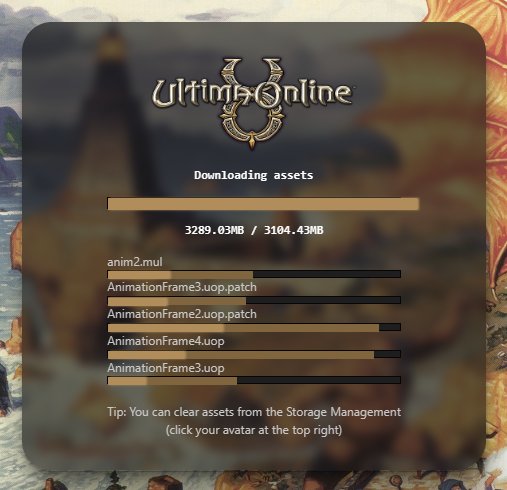
Downloads are stuck, extremely slow, or keep restarting
If the progress bar stalls, drops to near zero, or keeps retrying:
- Check your connection to Cloudflare. The game files are served from Cloudflare, so a routing issue between you and their network is a common cause of stalled downloads. Use these tools to check:
- speed.cloudflare.com: General Cloudflare network speed and latency. Take special note of the packet loss metric, high packet loss will cause dropped downloads.
- r2-ping.fernandodilland.com: Ping test specifically for Cloudflare R2, where the game files are stored
- Check your extensions. Disable any VPN extensions or ad-blockers that may be intercepting download requests.
- Try a VPN. In rare cases your ISP's routing to our game files CDN (hosted on Cloudflare) may have issues. A VPN can route around the problem.
- Clear your game files and try again. Click your profile icon (top right), go to Storage Management, and click Clear on Base Assets. Then try downloading again with a clean slate.
- Close other tabs. Other tabs downloading or streaming content can compete for bandwidth.
INFO
If the download counter shows a number higher than the total (e.g., "downloading 150 of 120 files", or "3819MB/3104MB"), that's normal. It means some files had to be retried.
"Not enough storage space to download game files"
This error means Chrome isn't allowing the game enough room to write its files. The game needs around 3.2 GB. Chrome calculates how much storage each site can use based on your total disk size, not how much free space you currently have, so the error is rarely caused by a full hard drive.
You can check exactly how much quota Chrome is giving the game:
- Copy and paste the following into your address bar (in a new tab) and press Enter:
chrome://quota-internals/- Look for the entry for the game's URL. The quota column shows the ceiling Chrome has set for that origin.
Tip 1
If the quota shown looks reasonable but you're still getting the error, your disk may not have enough physical free space to back the writes. Try freeing up space on the drive Chrome is installed on.
Tip 2
If the quota shown is unexpectedly low (under 1 GB), check whether "Clear cookies and site data when you close all windows" is enabled in Chrome settings (chrome://settings/content/siteData). This mode caps storage to 300 MB per site. It is uncommon, but if you have it on, turning it off will restore the normal quota.
The game is redownloading everything even though I didn't clear anything
Chrome can automatically delete stored data from sites you haven't visited recently when your device runs low on disk space. This is called eviction. When it happens to the game, the next time you open it Chrome treats it as a fresh install and redownloads all the base assets from scratch.
Eviction only affects sites that haven't been granted persistent storage. To protect the game's files from this, install the game as an app. Installed apps are marked as persistent and Chrome will not evict their data automatically.
If you don't want to install the app, the other option is to keep your disk from getting critically full. Chrome starts clearing site data when free disk space drops below roughly 2 GB.
Clearing your game files (step by step)
Clearing your files and letting the game redownload fresh copies may fix issues in the unlikely event your files get corrupted.
- Open the game in your browser but do not click Play yet.
- Click your profile icon in the top-right corner of the side menu.
- Go to the Storage Management tab.
- Click Clear next to Base Assets. This removes the game's art, sound, and map files.
- Close the Storage Management panel and click Play. The game will redownload everything.

INFO
This is different from clearing your browser cache. The in-game Storage Management only removes game-specific files and won't affect other websites.