Slow, Laggy, or High CPU Usage
If the game feels sluggish, your computer fan is running loud, or you checked Task Manager and saw Chrome eating 90%+ of your CPU, the most likely cause is that your browser is not using your graphics card.
The fixes below are listed with graphics-related steps first. Start at the top and work your way down.
Before you start
The browser-level changes on this page (GPU flags, graphics backend, etc.) apply to your entire browser, not just the game. If you'd rather keep your main browser untouched, consider setting these up in a dedicated browser instead.
Step 1: Make sure your browser is using your graphics card
This is the single biggest fix. Without it, the game renders entirely on your CPU, which is why it runs hot and slow.
How to check
- Copy and paste the following into your address bar (in a new tab) and press Enter:
chrome://gpu- Look for the Graphics Feature Status section near the top.
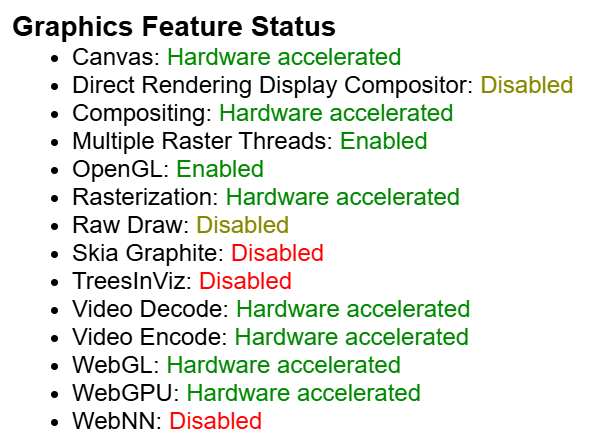
- You want to see "Hardware accelerated" next to items like WebGL, Canvas, and Rasterization.
- If you see "Software only" or "Unavailable" your CPU is being used instead of your GPU.
This is what a "good" feature status looks like -- however there could still be other issues at play
How to enable hardware acceleration
- Copy and paste the following into your address bar (in a new tab) and press Enter:
chrome://settings/?search=Use+graphics+acceleration+when+available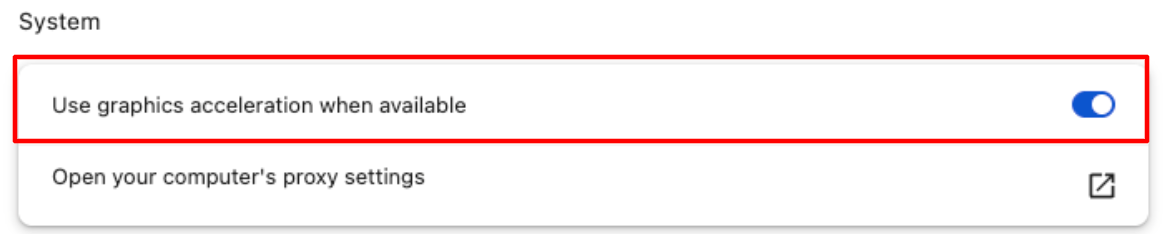
If hardware acceleration is still not working after enabling it, Chrome may have blocklisted your GPU. You can override this:
- Copy and paste the following into your address bar (in a new tab) and press Enter:
chrome://flags/#ignore-gpu-blocklist- Set it to Enabled and click Relaunch.

Laptops with two GPUs: How to force Chrome to use your dedicated GPU
Many laptops have two graphics chips: a weaker integrated one for saving battery, and a more powerful dedicated one for games. Chrome usually picks the weaker one. You need to tell it to use the powerful one.
- Copy and paste the following into your address bar (in a new tab) and press Enter:
chrome://flags/#force-high-performance-gpu- Set it to Enabled.
- Click the Relaunch button at the bottom of the page.

This setting is power-hungry
If you use your laptop on battery this will cause a big increase in power usage across Chrome for all tabs (whether the Web Client is running or not), consider whether you want to set up a separate dedicated browser instead.
Step 2: Set Chrome's graphics backend to DirectX 11 (Windows only)
This changes the internal rendering engine Chrome uses, and many players have reported smoother performance after switching. This option is only available on Windows.
- Copy and paste the following into your address bar (in a new tab) and press Enter:
chrome://flags/#use-angle- Change the dropdown from Default to D3D11 (DirectX 11).
- Click the Relaunch button at the bottom.

TIP
You can also experiment with the other backend options in the list and see if they improve your performance.
Step 3: Update your graphics drivers
Outdated GPU drivers are a common cause of rendering glitches and poor performance. The drivers that come with Windows Update are often months behind.
- Nvidia: Download the latest drivers from nvidia.com/drivers
- AMD: Download the latest drivers from amd.com/support
- Intel: Download the latest drivers from intel.com/download-center
After installing, restart your computer.
Step 4: Cap your FPS to match your monitor
Leaving the FPS uncapped can cause your browser to work much harder than it needs to and leads to instability. Setting it to match your monitor's refresh rate gives you the smoothest experience.
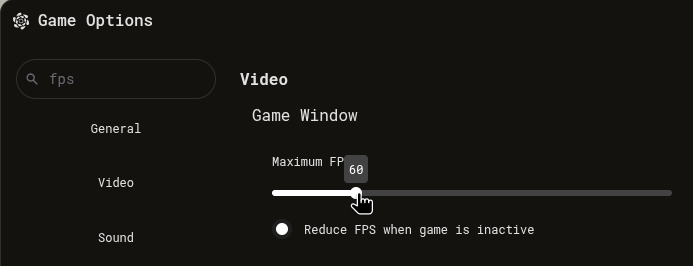
- Inside the game, open Options (the gear icon or press
Alt+O). - Go to the Video tab.
- Find the Maximum FPS slider.
- Set it to match your monitor's refresh rate. If you're not sure what yours is, 60 is a safe choice. If you have a gaming monitor it might be 100, 120, 144, or higher.
How to check your monitor's refresh rate on Windows:
Settings then System then Display then Advanced display settings. It will show your refresh rate in Hz (e.g., 60 Hz = 60 FPS).
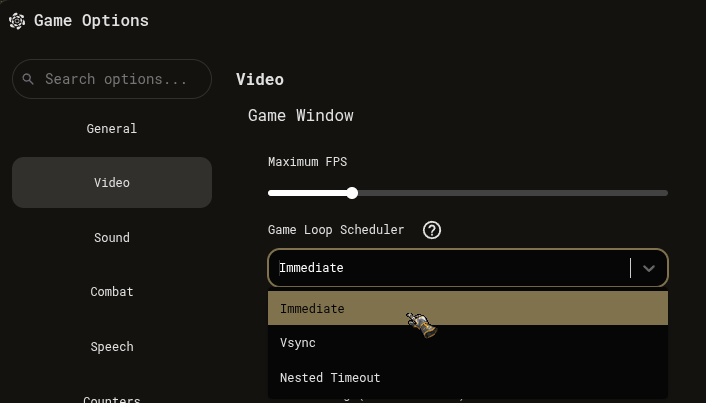
Step 5: Set Game Loop Scheduler to Immediate
This is a small tweak in the game's video settings that can make things feel more responsive.
- Inside the game, open Options.
- Go to the Video tab.
- Find Game Loop Scheduler and set it to Immediate.
Step 6: Close other tabs and programs
The Web Client is a full game running inside your browser. It needs resources. Other tabs with videos, social media, or other games will compete for your CPU and GPU.
- Close tabs you're not using, especially anything with video or animation.
- If you're running multiple game clients in separate tabs, each one needs its own share of resources. Consider using separate browser windows or profiles for each client.
Step 7: Disable browser extensions
Ad blockers, VPN extensions, and privacy tools can interfere with how Chrome renders graphics or handles network traffic. If you've tried everything above and the game is still slow, try running with extensions disabled.
To test if an extension is the problem, disable all extensions temporarily:
- Go to
chrome://extensions/and toggle off all your extensions. - Restart Chrome, navigate to the game, and log in.
- If performance is noticeably better, one of your extensions is the culprit. Re-enable them one at a time to find which one.
Step 8: Fix purple textures on Linux (Wayland + Vulkan)
Linux only
Skip this step if you are on Windows or macOS.
If the game renders but all textures appear purple or magenta, Chromium's Vulkan renderer is conflicting with the Wayland display server. Open chrome://flags/#use-angle and set the ANGLE backend to OpenGL instead of Vulkan, then relaunch.
If that does not help, you can also launch Chrome with --ozone-platform=x11 to force X11 mode entirely.
If you're running multiple accounts
When you have the game open in multiple tabs, Chrome will throttle (slow down) any tab that isn't in the foreground. After about 10 seconds in the background, a tab gets heavily restricted.
There are a few things you can do:
- Use separate browser windows instead of tabs, and keep them side by side so neither is fully hidden.
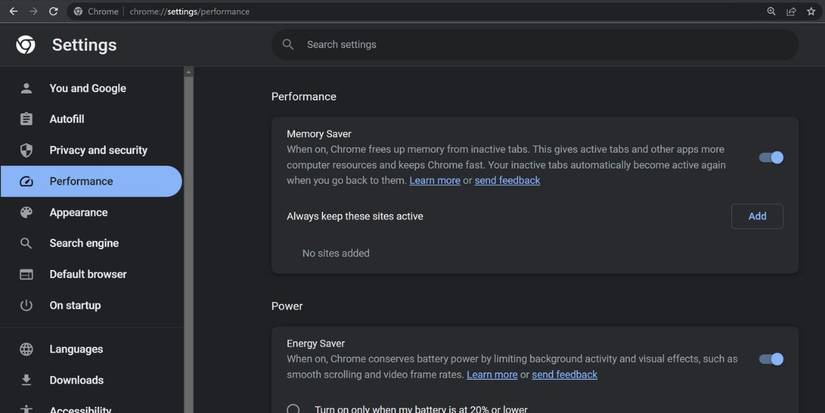
- Add the game site to Chrome's "Always keep active" list: Go to Chrome Settings then Performance, and add your game's URL (e.g.,
retail.classicuo.org) to the list of sites that should always stay active. - Disable Energy Saver in Chrome: Go to Chrome Settings then Performance and turn off Energy Saver. When active, this feature throttles CPU-heavy tabs even in the foreground.
Quick checklist
If you've gone through everything, here's a summary of what should be set:
| Setting | Where | Value |
|---|---|---|
| Hardware acceleration | Chrome Settings > System | On |
| High-performance GPU | chrome://flags | Enabled |
| Graphics backend | chrome://flags > ANGLE backend | D3D11 |
| Maximum FPS | In-game Options > Video | Match your monitor (e.g., 60) |
| Game Loop Scheduler | In-game Options > Video | Immediate |
| Energy Saver | Chrome Settings > Performance | Off |
| GPU drivers | Nvidia/AMD/Intel website | Latest version |