Install the Game as an App
You can install the Web Client as a standalone app on your computer. It behaves like a desktop game: its own window, its own taskbar icon, and no browser tabs or toolbars in the way.
Installing also protects the game's stored files from being silently deleted by the browser. When a device runs low on disk space, Chrome automatically removes stored data from sites you haven't visited recently. Installed apps are exempt from this: Chrome treats their storage as persistent and will not delete it to free up space.
How to install on Chrome
- Navigate to the game in Chrome and wait for it to load.
- Click the three-dot menu in the top-right corner of the browser.
- Click Install page as app...
- Click Install in the confirmation dialog.
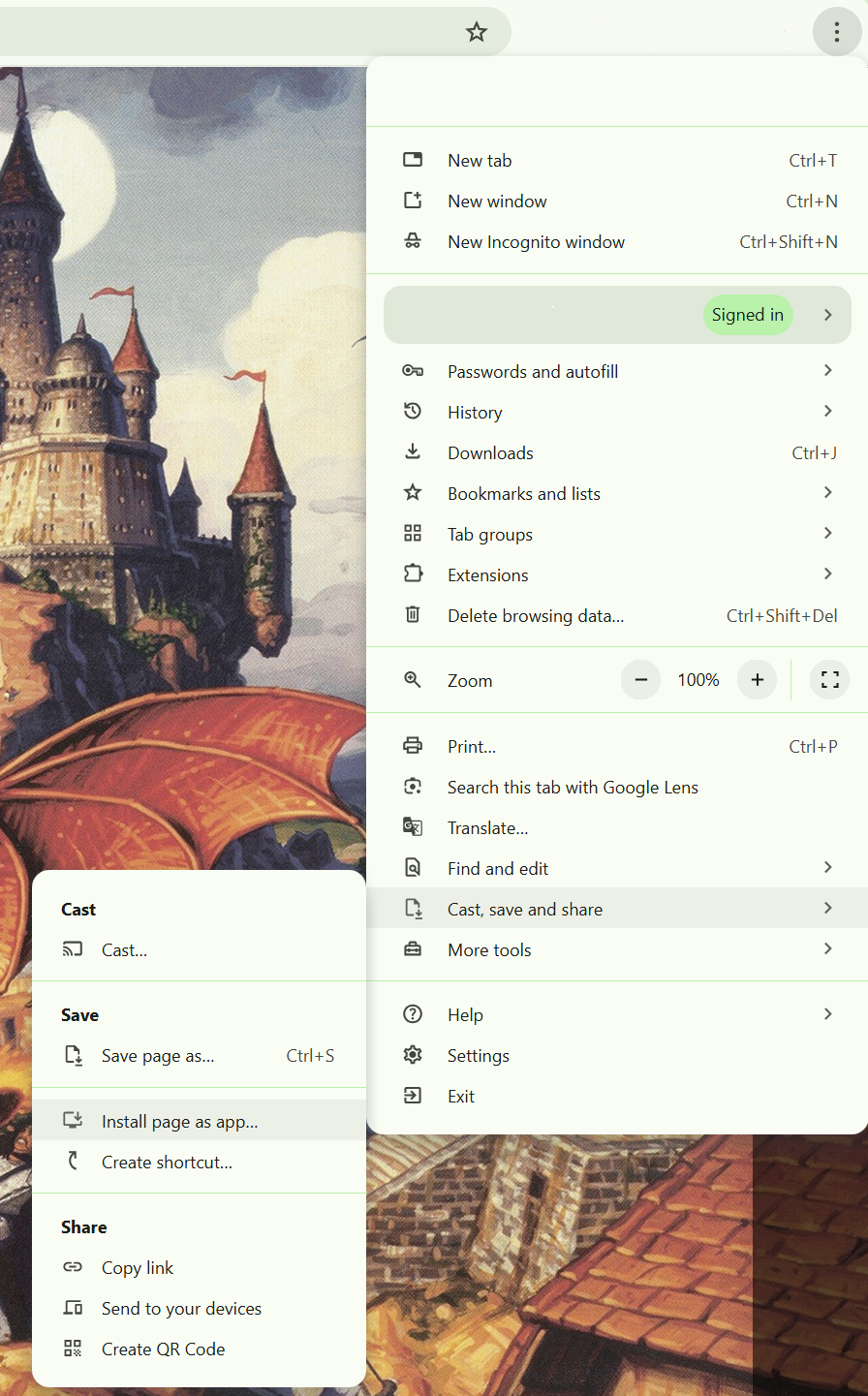
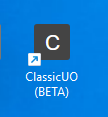
Chrome will open the game in its own window and add a shortcut to your taskbar and desktop. Launch it from there going forward.
How to install on Edge
The steps are the same in Edge: open the three-dot menu and look for Apps then Install this site as an app.
Your settings carry over
All your in-game settings, macros, and profiles are saved to the cloud, so everything will be exactly as you left it when you open the app for the first time.